Account and preferences
Make Metis yours. Open Settings with the gear at the bottom of the rail.
Preferences
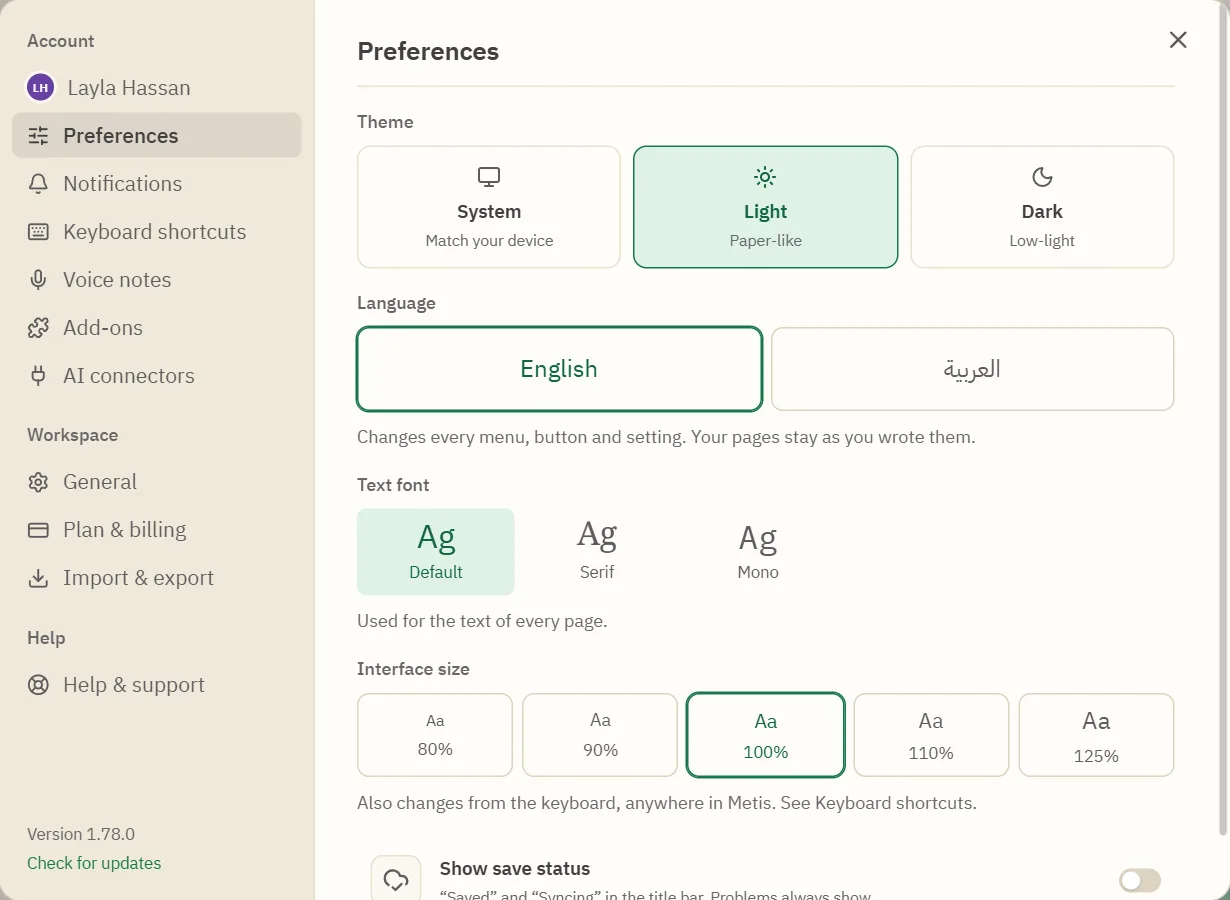
- Language: English or Arabic (العربية). It changes every menu, button and setting and lays the window out right to left. Your pages stay as you wrote them. The Windows installer asks for your language too.
- Theme: System follows Windows, or choose Light or Dark. Ctrl Shift L flips between them.
- Text font: Default, Serif or Mono, for every page.
- Interface size: 80% to 125%, set separately on each device. Ctrl =, Ctrl - and Ctrl 0 work from anywhere.
- Show save status: shows “Saved” and “Syncing” in the title bar. Problems always show.
Notifications
Settings → Notifications decides what pops up on your screen.
- Show notifications turns them all off or on. Off, everything still waits quietly in the Inbox.
- Notify me about reminders, mentions and assignments, each on its own. Daily highlights from Study count as reminders.
- Sound: the Windows default, no sound, or Custom sound… with a file of your own under 1 MB.
- Send a test notification shows how it will look and sound.
Keyboard shortcuts
See every shortcut and search by action or key. Click one, press the new keys and save. More about shortcuts.
Your account
Click your name at the top of Settings.
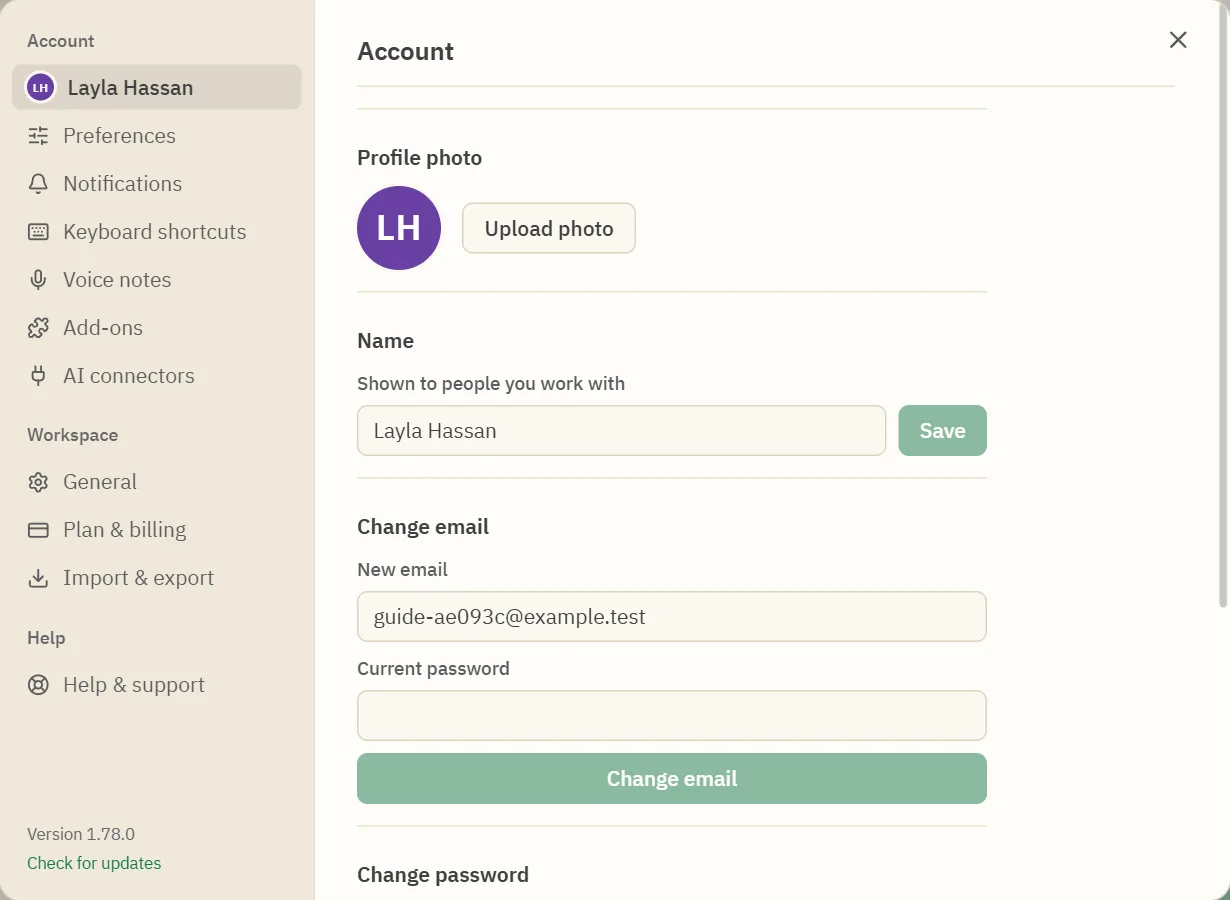
- Profile photo and Name, which teammates see.
- How you sign in shows the Google account you sign in with, if any, and whether you have a password. An account made with Google has none: Add a password emails you a link to choose one, after which you can sign in either way. With a password set, Disconnect stops Google sign-in, and it stays off, even with the same email, until you choose Turn back on.
- Change email and Change password. Both ask for your current password, so they appear once your account has one.
- Sign out.
Voice notes and AI connectors
Voice notes sets up dictation and meeting transcripts. See Voice notes and meetings. AI connectors lets apps like Claude and ChatGPT reach your notes. See AI connectors.
Under the workspace, Integrations makes keys for n8n, Make and your own scripts, each reaching only the pages you connect. See Integrations and the API.
Add-ons
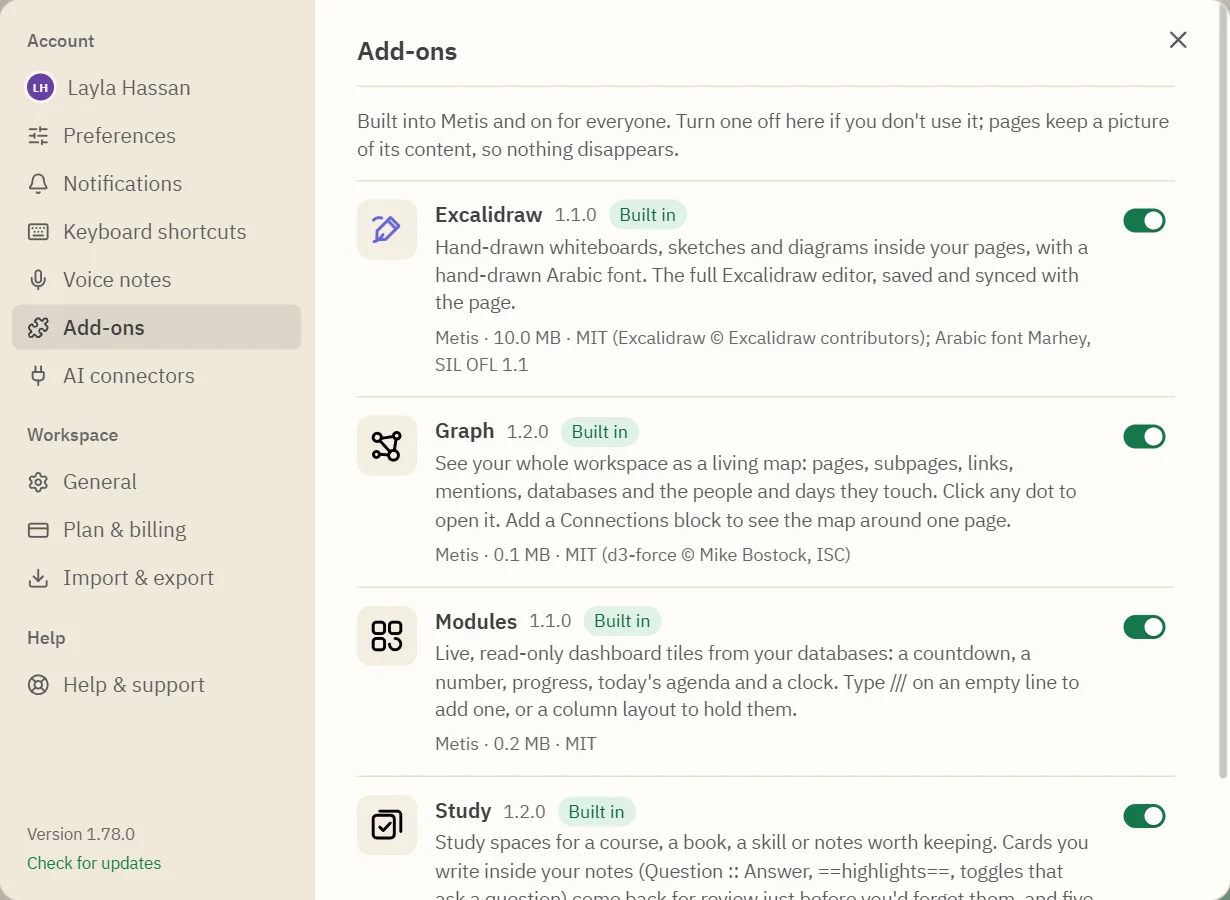
Excalidraw, Graph and Modules come with Metis. Use the switch to turn one off if you do not use it. Pages keep a picture of an add-on’s content, so nothing disappears.
Workspace name
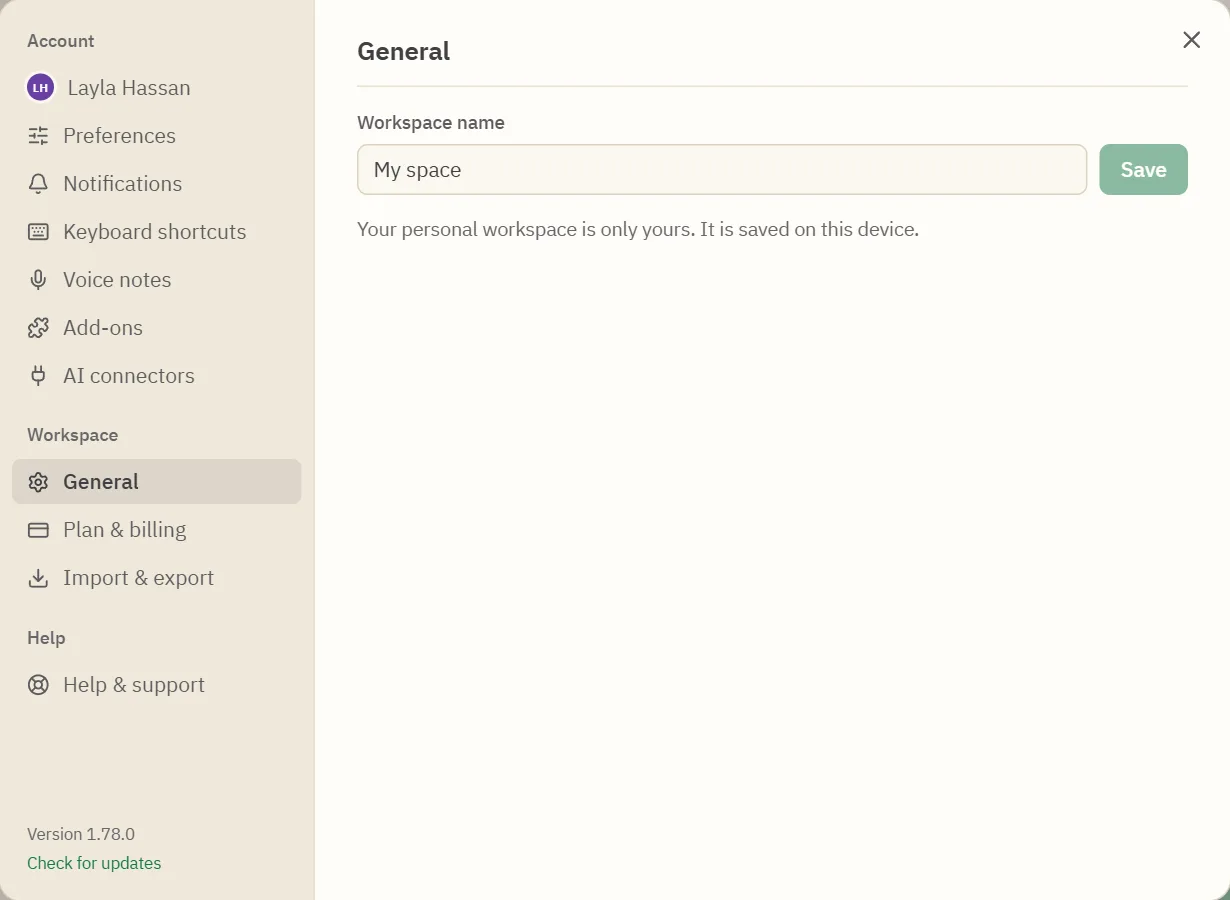
General renames the workspace you have open.
Updates
The desktop app updates itself. To look for a new version now, choose Check for updates under the version number at the bottom of the Settings list.
Get help
The question mark on the rail has Get support and Send feedback. When you are signed in, each opens a short form: write a subject and a message and send it. Your app version and workspace go with it, never your notes, and the reply comes by email. Each message gets a ticket number, such as #1042, shown when you send it and in the email that confirms it. Mention that number if you write to us about it again, or simply reply to that email, and it joins the same ticket. My tickets, in the same menu and in Settings → Help & support, lists your tickets by number with every answer, and you can add to one there. Writing to a solved ticket opens it again.
Report a bug, in the same menu or as the bug button above Settings on the rail, asks what happened and what you did just before. In the desktop app it takes a screenshot of the window; elsewhere you can add a picture. The screenshot is sent only if you tick Include this screenshot. The report also carries your app version, device and recent errors; open Also sent to read them. Nothing is sent until you tick the box to agree and choose Send.
Settings → Help & support lists the addresses: support@metisnote.com for help and sales@metisnote.com for plans and payments.