Study spaces and flashcards
A study space is a page for something you are learning: a course, a book, a skill or notes worth keeping. Cards you write inside its notes come back for review just before you would forget them.
Tutorial: your first ten minutes
Follow these steps once and you will have used every part of Study. Each step links to its full section below.
- Make a space. Open Study (Ctrl Shift Y), choose New space, name it "Biology" and pick Course. A first note, "Lesson 1", is ready. More
- Write three cards in "Lesson 1":
That is one question card, one fill-in-the-blank card and two vocabulary cards (one each way). MorePowerhouse of the cell :: Mitochondria Plants make food by ==photosynthesis== cell ::: خلية - Build a palace before you review. Go back to the space, choose + New palace, name it "My home" and list the spots one per line: Front door, Shoe rack, Sofa, Kitchen table. Choose Save palace. More
- Press Start. Each new card first shows its question and answer together and asks for a hook. For the mitochondria card, write "a giant battery charging at the front door", pick My home › 1. Front door in the list under it and choose Got it. Do the same for the others, one spot each. More
- Answer the test. Each card comes back later in the session. Press Space to reveal, then grade yourself with 1–4. If you're stuck, H shows your hook and its spot. More
- Walk the palace. Back in the space, Walk beside "My home" now works: it shows your cards in route order, door to table. Then close your eyes and walk it again.
- Come back tomorrow. The space tells you how many cards are due. A few minutes a day keeps your streak going. More
Create a space
Open Study in the sidebar (or press Ctrl Shift Y), choose New space, give it a name and pick what it is:
| Kind | Starts with |
|---|---|
| Course | A first note, "Lesson 1" |
| Book | A first note, "Chapter 1" |
| Skill | A first note, "Drills" |
| Collection | Nothing: just start writing |
You can also turn any page into a space: type / and choose Study space. Every page under a space's page is one of its notes. Add more with + Add note in the space, or as ordinary subpages.
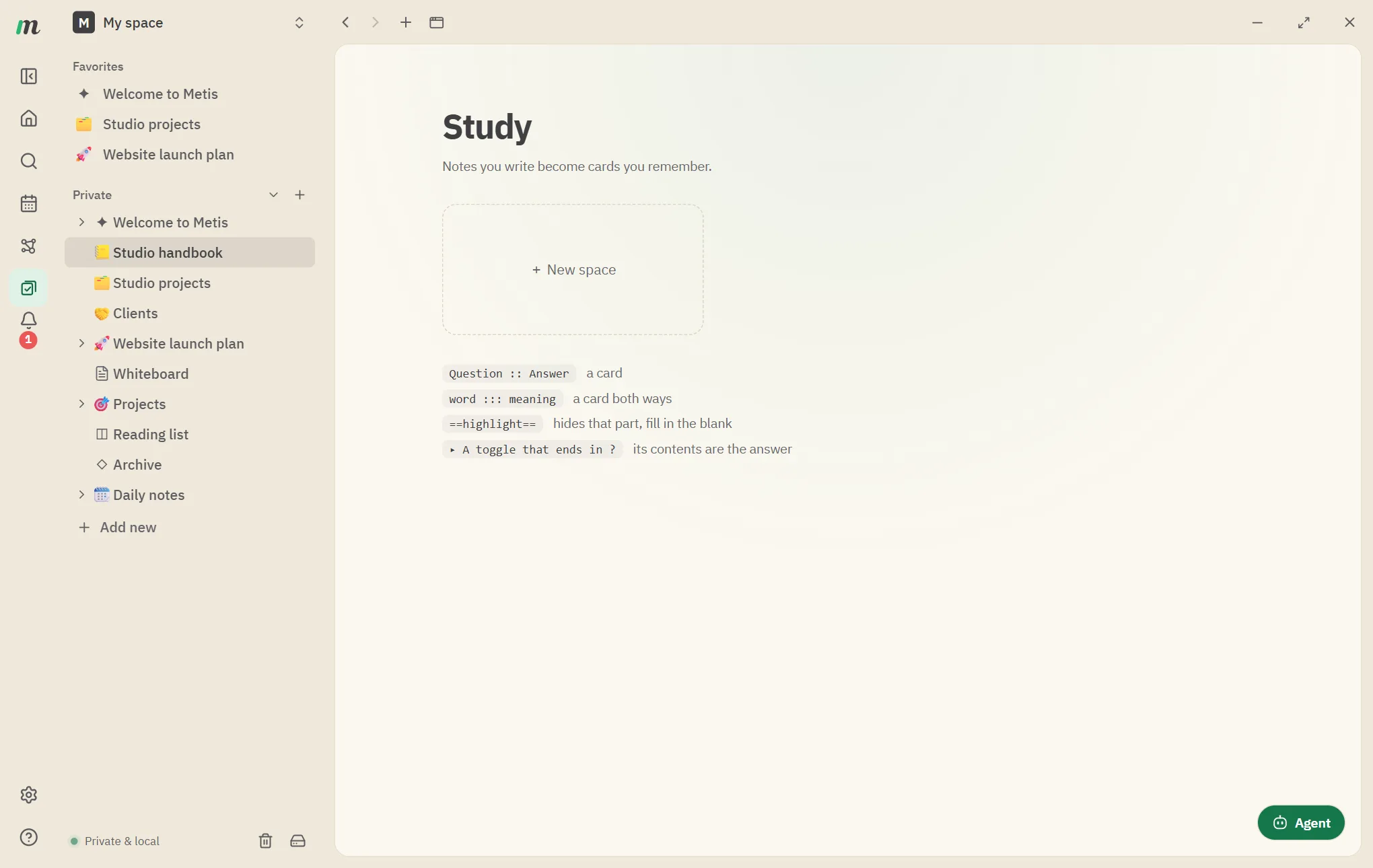
Write cards in your notes
Cards are part of the note, so editing the note edits the card.
| You write | You get |
|---|---|
Question :: Answer | A card: the question first, the answer when you reveal it. Leave a space on both sides of ::. |
word ::: meaning | Two cards, one each way. Good for vocabulary. |
The ==highlighted== part | A fill-in-the-blank card for each highlight in the line. |
A toggle whose title ends in ? | A card whose answer is everything inside the toggle, pictures included. A picture alone is enough. |
Code blocks never make cards. Notes behind the notes password only make cards while the password is entered.
Review
The space shows how many cards are waiting and about how long they take. Press Start, or Review all in Study to mix every space together.
| Key | What it does |
|---|---|
| Space or Enter | Show the answer |
| 1 2 3 4 | Again, Hard, Good, Easy. Each button shows when you will see the card next. |
| H | Show the hint, or add or edit the card's hook once it's revealed |
| O | Open the note at that card |
Metis schedules cards with FSRS, the spaced-repetition method Anki uses, aiming for you to still remember 90% of your cards on the day they come back. A card you miss (Again) comes back later in the same session. Each space shows up to 20 new cards a day; change that in its Settings.
Hooks: make it stick
A hook is the image, story, rhyme or place that helps you remember a card. The first time a new card comes up, Metis shows the question and the answer together and asks Make it stick: what's your hook?
- Got it (Ctrl Enter) saves your hook. The card comes back later in the same session as a test.
- I know it, test me now tests it straight away.
Leave the hook empty if you don't need one. To skip this step for a space, open its Settings and turn off Learn new cards before testing them.
While reviewing:
- Before you reveal a card that has a hook, Hint (H) shows it.
- A card you press Again on comes back with its hook already showing.
- After you reveal a card, H adds or edits its hook.
Hooks are kept in the space and sync with your notes.
Memory palaces
A memory palace is a route you know by heart, like the rooms of your home. You leave each card's hook, a vivid picture, at one spot along it. To recall the cards, you walk the route in your head and find them where you left them.
A new palace is empty, and Walk stays off until at least one card is placed in it. To use one:
- Make the route. In a space, under 🏛️ Memory palaces, choose + New palace. Name it and list its spots one per line, in the order you walk them. Pick places you can see clearly, like the front door, then the shoe rack, then the hall mirror. Choose Save palace.
- Place a card. A card goes into a palace through its hook. Write the hook, then choose a spot in the list under it, which starts on Not in a palace. You can do this:
- the first time a new card comes up, when it asks Make it stick: what's your hook?
- on any card you have already learned: reveal it in a review and press H (or + Add a hook, or Edit on its hook), then Save hook.
- Walk it. The palace shows how many spots and cards it has. Walk goes through its cards in route order, whether they are due or not, showing 📍 and the spot at the top. Grade them like any review. When you reach the end it says Walk done.
In normal reviews, a placed card shows its spot next to its hook, so Hint (H) tells you where to look. To change a route, choose Edit beside the palace. Cards stay on their spot number, so adding a spot at the end is safe, but inserting one in the middle moves every card after it.
Exam date
In a space's Settings, set an Exam date. Until that day, cards come back at least twice before it: no interval is longer than half the days left. The space shows how many days are left, and reviews show Exam mode. After the exam, scheduling goes back to normal.
Settings also has Remember (the share of cards Metis aims for you to remember: 80% to 95%; higher means more reviews) and New cards a day (20 unless you change it).
Make cards with AI
In a space's notes list, choose ✨ Make cards beside a note. The Metis agent opens, reads the note and adds 5 to 12 cards at the end of it, under a heading Cards, written as Question :: Answer. Check and edit them like any of your notes. This uses the agent, so it needs the agent to be available on your plan.
Focus sessions
Choose Focus in a space. The note you worked on last opens in Zen with a 25-minute timer running. You can also start the timer yourself in Zen on any note in a space.
When the timer runs out, a quick recall comes before your break:
- If you wrote cards during the session, up to 3 of them, graded like any review.
- If you didn't, you write the key ideas from memory, then compare them with the start of your notes.
Press Esc or Skip to go straight to the break. Leaving Zen early still counts the minutes you spent, but skips the recall.
Daily highlights
Every day Metis picks 5 passages from your spaces' notes: lines with ==highlights==, quotes and callouts. They show at the top of Study. To see them on another page, such as your daily note template, type / and choose Daily highlights.
The picks change at midnight and are the same on all your devices. Every passage comes up once before any repeats. On each one:
| Choose | What it does |
|---|---|
| Where it's from (under the passage) | Opens the note at that passage |
| Less often | Shows it a third as often. Show as usual undoes it. |
| Hide | Never shows it again in highlights. A highlighted line still makes its card. |
To get one by notification, set Notify me daily in Study to a time. The notification shows that day's first highlight and opens it. It arrives like a reminder: a pop-up on desktop, a notification on your phone even when Metis is closed, and an entry in the Inbox. Turn reminders on in Settings → Notifications. The time is kept per device. Notes behind the notes password never show in notifications.
Your progress
Each space shows its number of cards, new cards for today, how much of what you have reviewed you would recall right now, your streak of study days, your minutes of focus this week, and a grid of the last 15 weeks. A day counts toward the streak if you reviewed or focused in the space.
Progress is kept in the space's block on its page and syncs with your notes. Deleting that block deletes the space's review history; the notes and cards stay.
Turn it off
Study is an add-on. Turn it off on a device in Settings → Add-ons.