Keyboard shortcuts
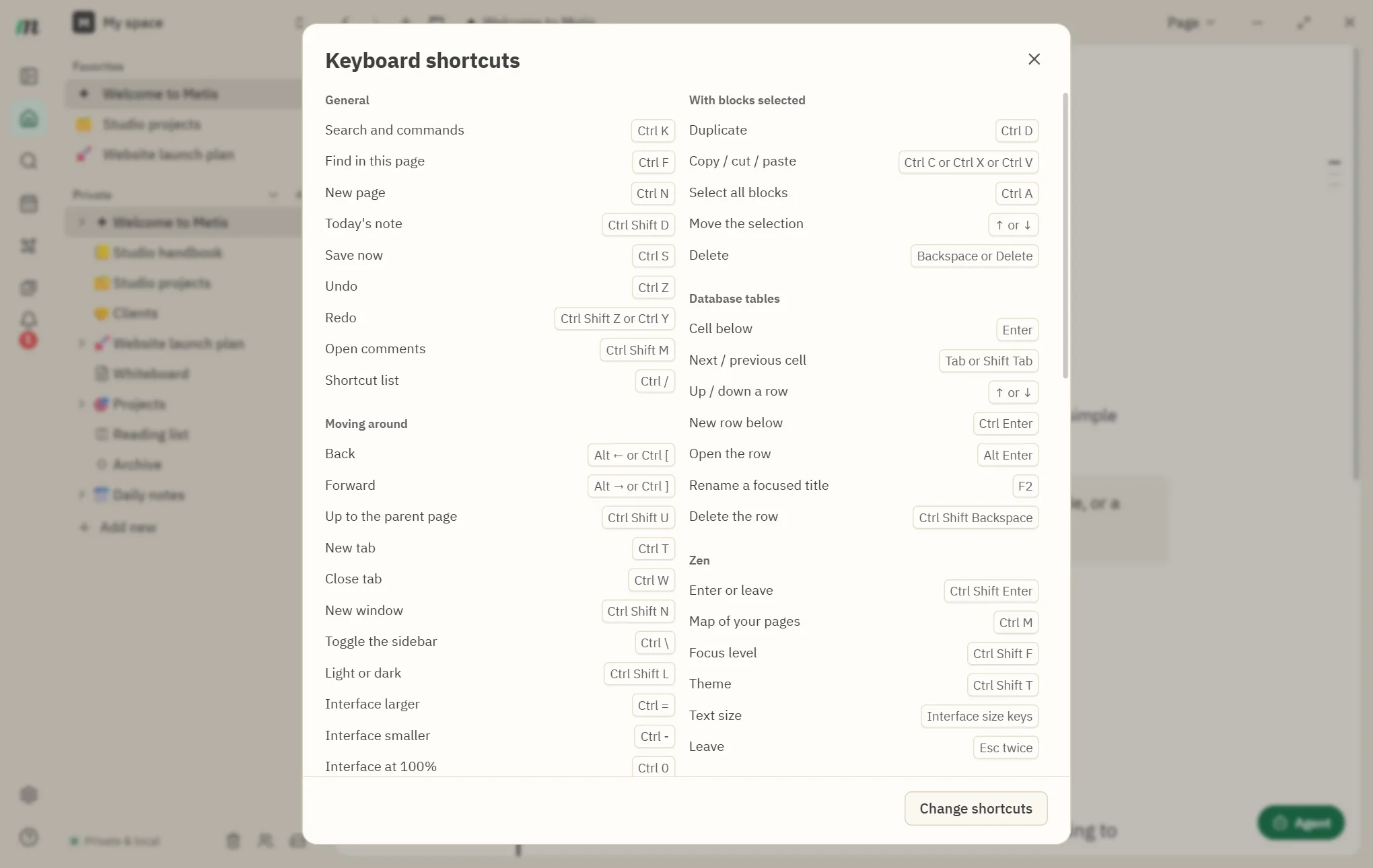
Everything you can do without the mouse. Press Ctrl + / in Metis to see them all.
The shortcuts list inside Metis. Change a shortcut
Open Settings → Keyboard shortcuts , or press Change shortcuts in the list above.
Click the keys next to an action.
Press the new keys.
Press Enter or Save . Esc cancels.
If another action already uses those keys, Metis asks whether to replace it. Keys the browser or your computer keeps, like Ctrl C , can’t be used. Actions with a lock can’t be changed. The arrow next to a changed shortcut puts it back, and Reset all restores them all. Your shortcuts are saved on each device.
The tables below show the keys Metis starts with.
General
Search and commands Ctrl K Find in this page Ctrl F New page Ctrl N New page from a template Ctrl Alt N Today’s note Ctrl Shift D Save now Ctrl S Open comments Ctrl Shift M Undo / redo Ctrl Z / Ctrl Shift Z or Ctrl Y Shortcut list Ctrl /
Moving around
Back / forward Alt ← / Alt → Up to the parent page Ctrl Shift U New tab / close tab Ctrl T / Ctrl W New window (desktop) Ctrl Shift N Toggle the page list Ctrl \ Graph Ctrl G Study (review your cards) Ctrl Shift Y Light or dark Ctrl Shift L Interface size Ctrl = / Ctrl - / Ctrl 0
Writing
Block menu / @ menu @ Bold / italic / underline Ctrl B / Ctrl I / Ctrl U Strikethrough / highlight Ctrl Shift X / Ctrl Shift H Inline code Ctrl E Clear formatting Ctrl Alt \ Line inside a block Shift Enter Indent / outdent Tab / Shift Tab Tick a to-do Ctrl Enter Block actions Ctrl / while writingMove block up / down Ctrl Shift ↑ / Ctrl Shift ↓ Leave a code block Ctrl Enter or Esc Open or close every toggle Ctrl Alt T Turn into text Ctrl Shift 0 Turn into heading 1, 2, 3 Ctrl Shift 1 / 2 / 3 Turn into to-do, bullet, number Ctrl Shift 4 / 5 / 6 Turn into toggle, code, page Ctrl Shift 7 / 8 / 9
With blocks selected
Copy / cut / paste Ctrl C / Ctrl X / Ctrl V Duplicate Ctrl D Select all blocks Ctrl A Move / stretch the selection ↑ ↓ / Shift with arrowsDelete Backspace or Delete
Database tables
Cell below Enter Next / previous cell Tab / Shift Tab Up / down a row ↑ / ↓ New row below Ctrl Enter Open the row Alt Enter Rename a focused title F2 Delete the row Ctrl Shift Backspace Copy / paste a cell Ctrl C / Ctrl V
Voice and AI
These keys can’t be changed.
Writing help Ctrl J Dictate Space on an empty line, or Ctrl Space Dictate and polish Ctrl Win
Zen
Enter or leave Ctrl Shift Enter Map of your pages Ctrl M Focus level Ctrl Shift F Theme Ctrl Shift T Leave Esc twice