Install Metis and sign in
Metis runs on Windows, Mac, Linux and Android, and in your browser. You need a free account to open a workspace.
Get the app
- Go to the download page and choose Download for your system.
- On Windows, run the installer, staying connected to the internet. It asks for your language, English or Arabic, then downloads the latest version of Metis, and Metis opens when it finishes.
Prefer not to install anything? Use Metis in a browser at app.metisnote.com. If you open the website on a Windows computer that has the app, Metis offers to open the page in the app instead.
On Linux, mark the AppImage as executable and open it, or install the .deb on Ubuntu or Debian. The download page has steps for the Mac and Android.
The desktop app updates itself. When a new version is ready it asks whether to Install now or Later. On Android, an Update Metis card appears when a new version is out: choose Update to download it, then let Android install it. Later hides the card until the next version.
Create your account
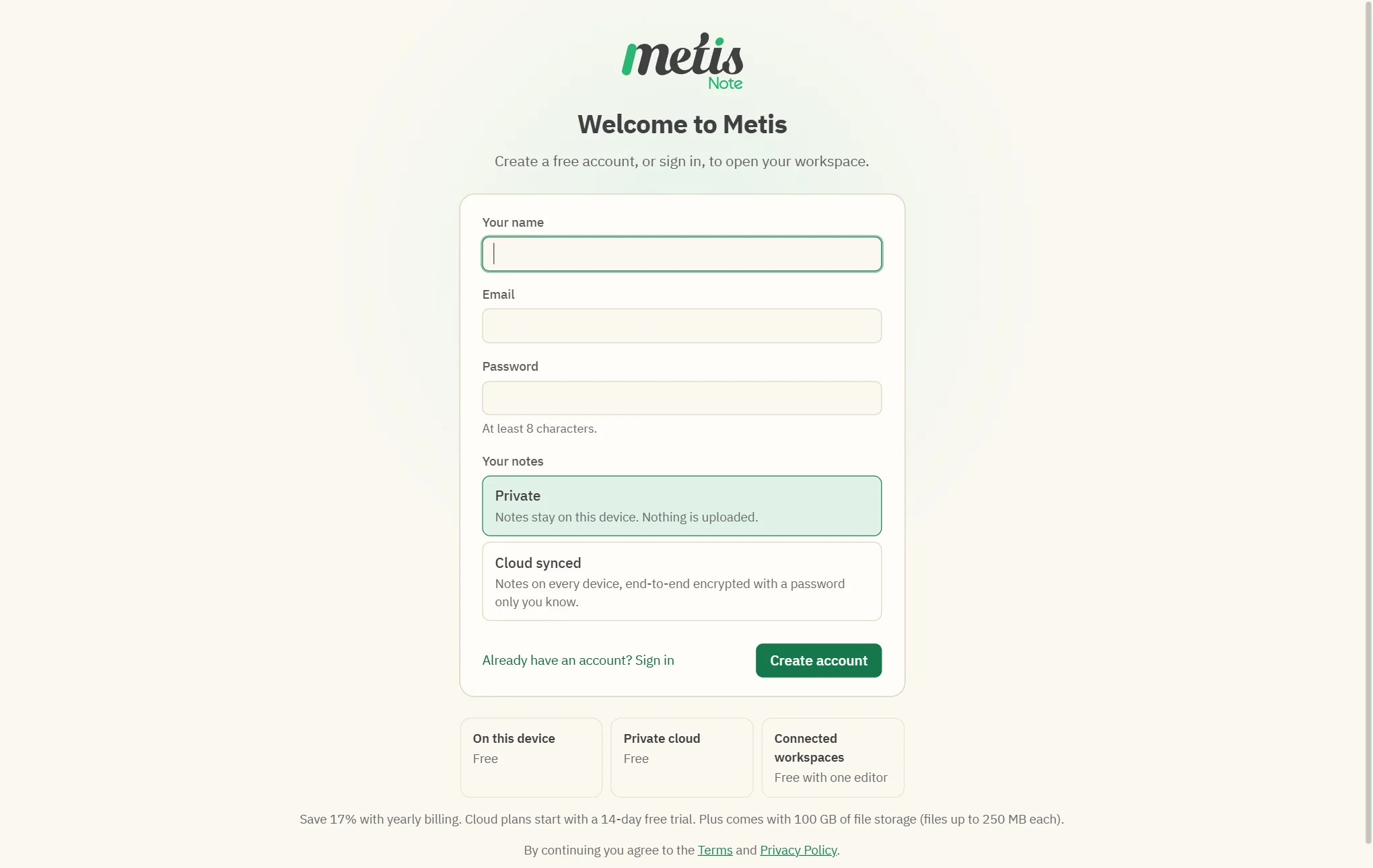
- Type your name, your email and a password of at least 8 characters.
- Choose Create account.
- If Metis asks you to confirm your email, open the link it sent you.
Forgot your password? Choose Sign in, then Forgot password?.
Continue with Google
Instead of a password, you can choose Continue with Google at the top of the same screen and pick your Google account. There is no email to confirm: Google already has.
- In the desktop app, Google opens in your browser. Finish there, and Metis signs you in by itself. To stop, choose Cancel under the button.
- The iPhone app doesn't offer Google sign-in yet. Use your email and password there.
- If you already have a Metis account with the same email, Google signs you in to it, and Metis emails you that Google sign-in was added. Your password keeps working too.
- An account made with Google has no password. If you try one, the error reminds you to choose Continue with Google. To have a password as well, see Account and preferences.
Choose where your notes live
Your account starts with a free personal workspace. You can add cloud sync or a Connected workspace whenever you like.
| Option | Where the notes are | Price |
|---|---|---|
| On this device | Only on your computer. Nothing is uploaded. | Free |
| Private cloud | On your computer, and synced to your other devices, end-to-end encrypted. | Free, with 512 MB for pictures and files. Plans from $4 a month add storage and AI. |
| Connected workspace | On the Metis server, where integrations and shared pages can reach it. Just you, or everyone you invite. | Free, with 512 MB for pictures and files. Plans are $4 per member a month or $40 a year; viewers are free |
Both start with a 14-day free trial of Pro, with no card needed. After it, syncing stays free.
Your first few minutes
Metis opens on a starter workspace with a Welcome to Metis page and a ready-made Projects tracker. Edit them or delete them; they are yours.
- Press Ctrl N to make a new page and give it a title.
- On an empty line, type
/and pick a block. See Write with blocks. - Press Ctrl K any time to find a page.
Good to know: Metis saves as you type. There is no Save button to remember.