Connected workspaces
A workspace Metis can read, so integrations and shared pages work there. Use it alone, or invite people and edit together in real time.
Metis has two kinds of workspace. A Private workspace is yours alone: it is kept on your device and, if you sync it, encrypted so not even Metis can read it. A Connected workspace lives on the Metis server where Metis can read it, which is what lets integrations, page sharing for comments and edits, and other people work there. A Connected workspace with only you in it is fine: you don’t need a team.
Create a Connected workspace
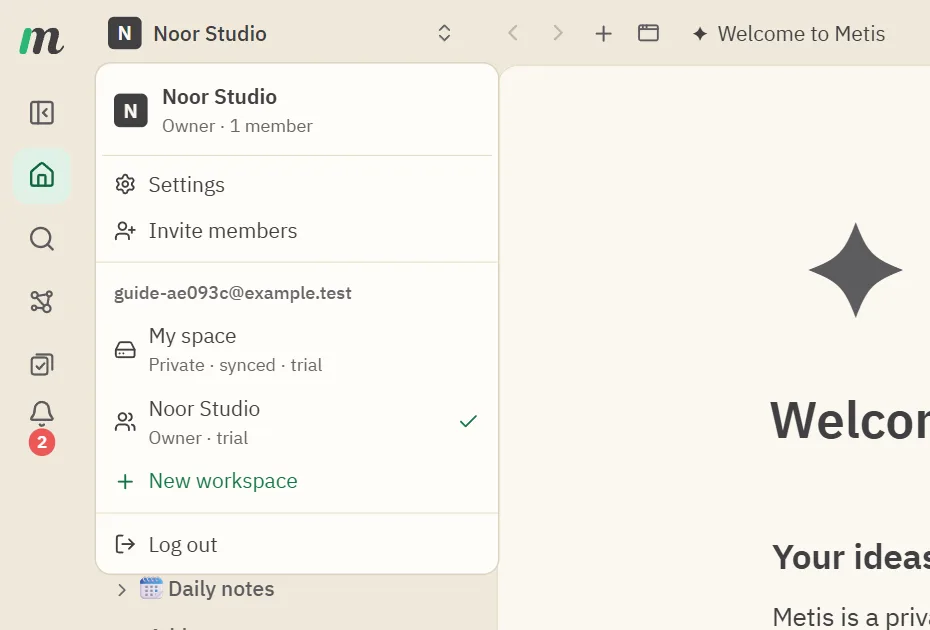
- Open the workspace menu and choose New workspace, then Connected.
- Name the workspace and pick how to start: Starter pages, a copy of your personal workspace, or Empty. A copy leaves your personal pages untouched.
- Choose Create workspace, then invite people or choose Skip for now.
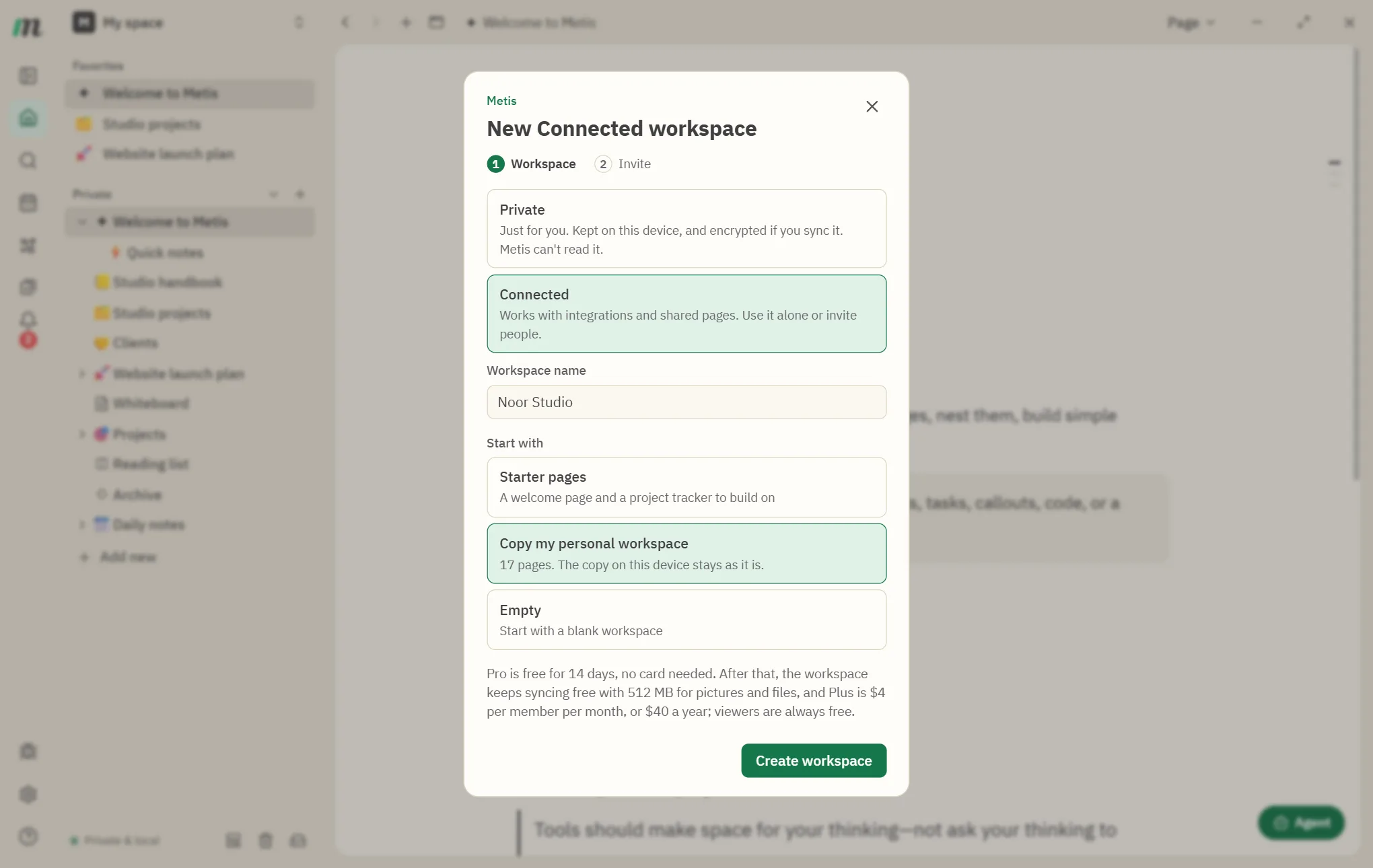
Your first Connected workspace gets a 14-day trial of Pro. After that it stays free with one editor, the owner, and any number of viewers; members and admins need Plus. Workspaces made before 28 November 2026 keep the editors they have. Switch between workspaces from the workspace menu.
Extra Private workspaces
To keep study notes apart from work notes, choose New workspace, then Private. Extra Private workspaces are free and kept on this device only. They are not synced, even with cloud sync. To delete one, open it and go to Settings → General → Delete workspace.
Invite people
- Open Settings → People, or the workspace menu’s Invite members.
- Type an email address and pick a role.
- Choose Invite. Metis gives you a one-time link. Copy it and send it to them yourself. It lasts 7 days.
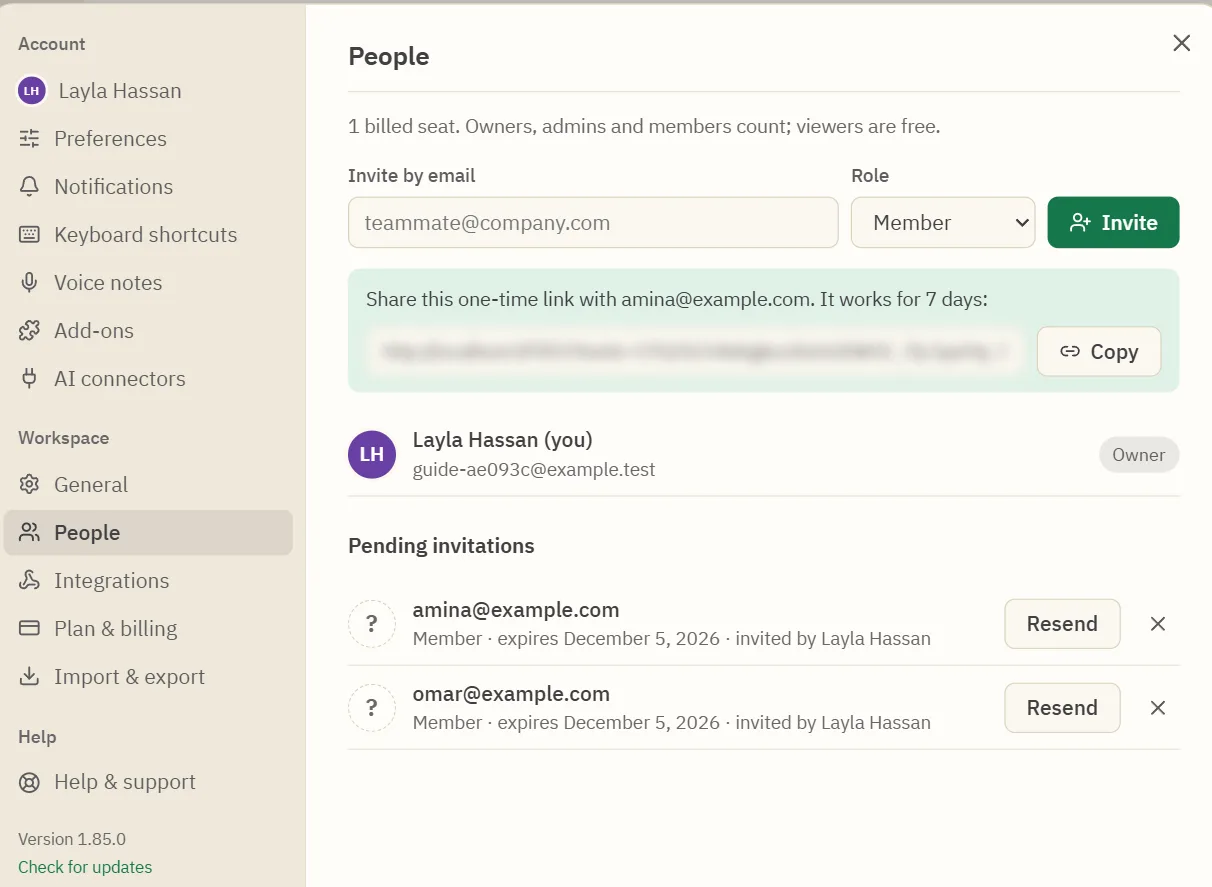
The person opens the link, signs in or creates an account, and they are in. Under Pending invitations you can Resend to get a fresh link, or withdraw an invitation with the ×.
Roles
| Role | Can | Paid seat? |
|---|---|---|
| Owner | Everything, including billing | Yes |
| Admin | Manage members and the workspace | Yes |
| Member | Edit every page | Yes |
| Viewer | Read | Free |
Work together
A Connected workspace looks like your own, with a Shared page list.
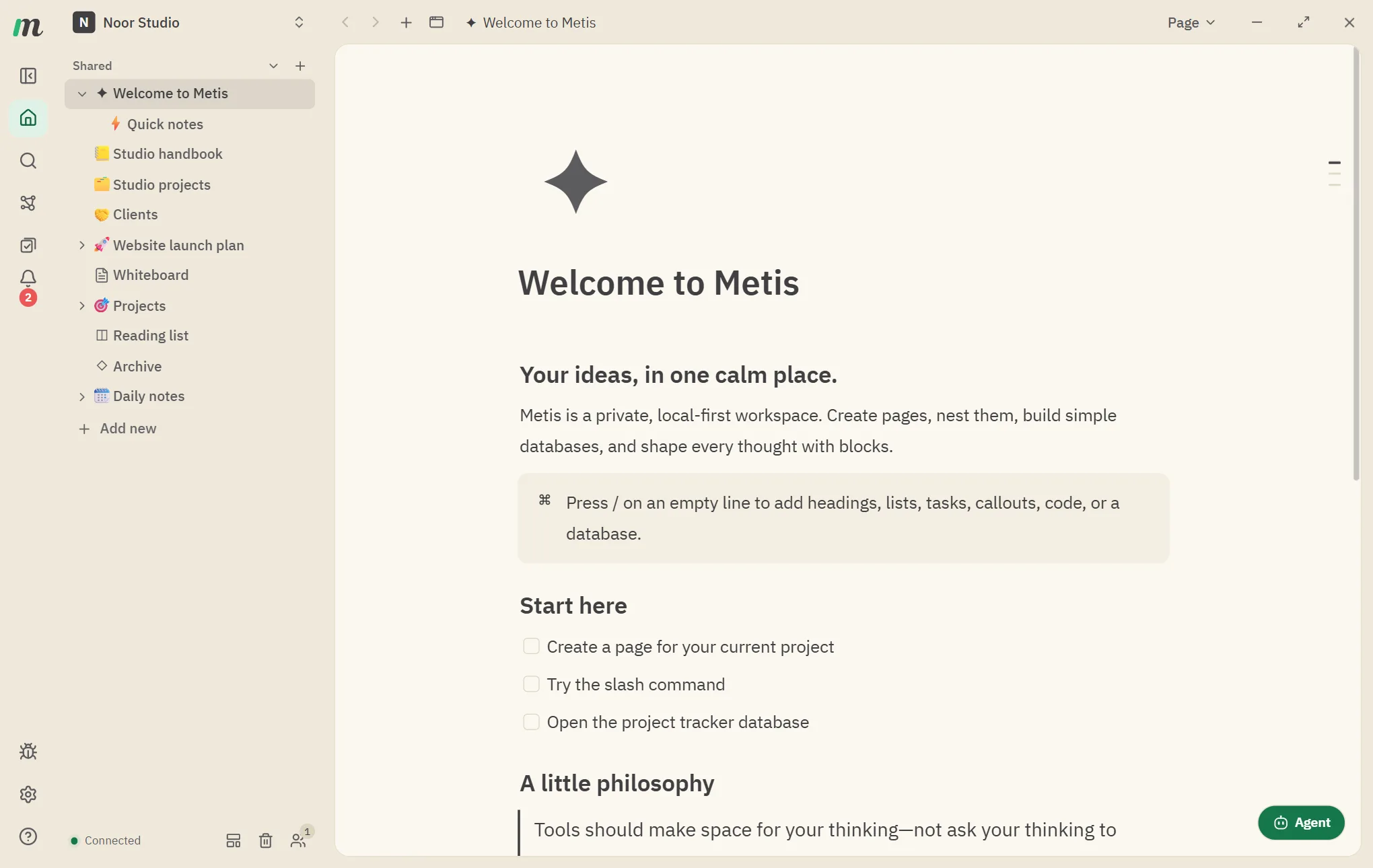
- Pages sync as people type. Edits in different places merge rather than overwrite each other.
- You can see who else is on a page.
- Mention a teammate, assign them with a Person property, or leave a comment.
Good to know: Connected workspaces are stored on the Metis server and are not end-to-end encrypted the way a Private cloud is. That is the trade: Metis can read them, so integrations and sharing work.
Manage the workspace
In Settings → General:
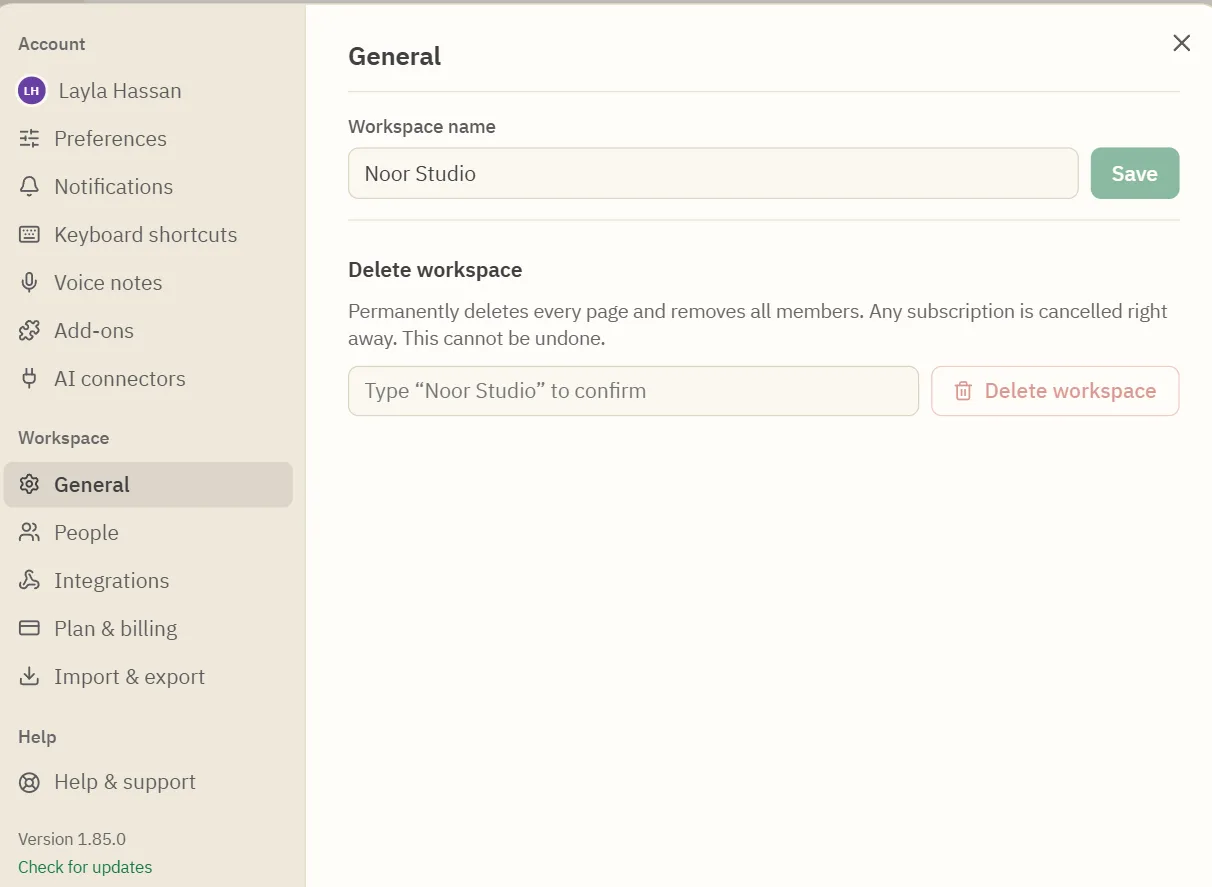
- Workspace name renames the workspace.
- Transfer ownership hands the workspace and its billing to another member. You become an admin.
- Leave workspace removes your own access.
- Delete workspace permanently deletes every page and removes all members. You must type the name to confirm.
Admins can also require add-ons for everyone from Settings → Add-ons.