A tour of the window
Metis has one window with four parts: the rail, the page list, the title bar and your page.
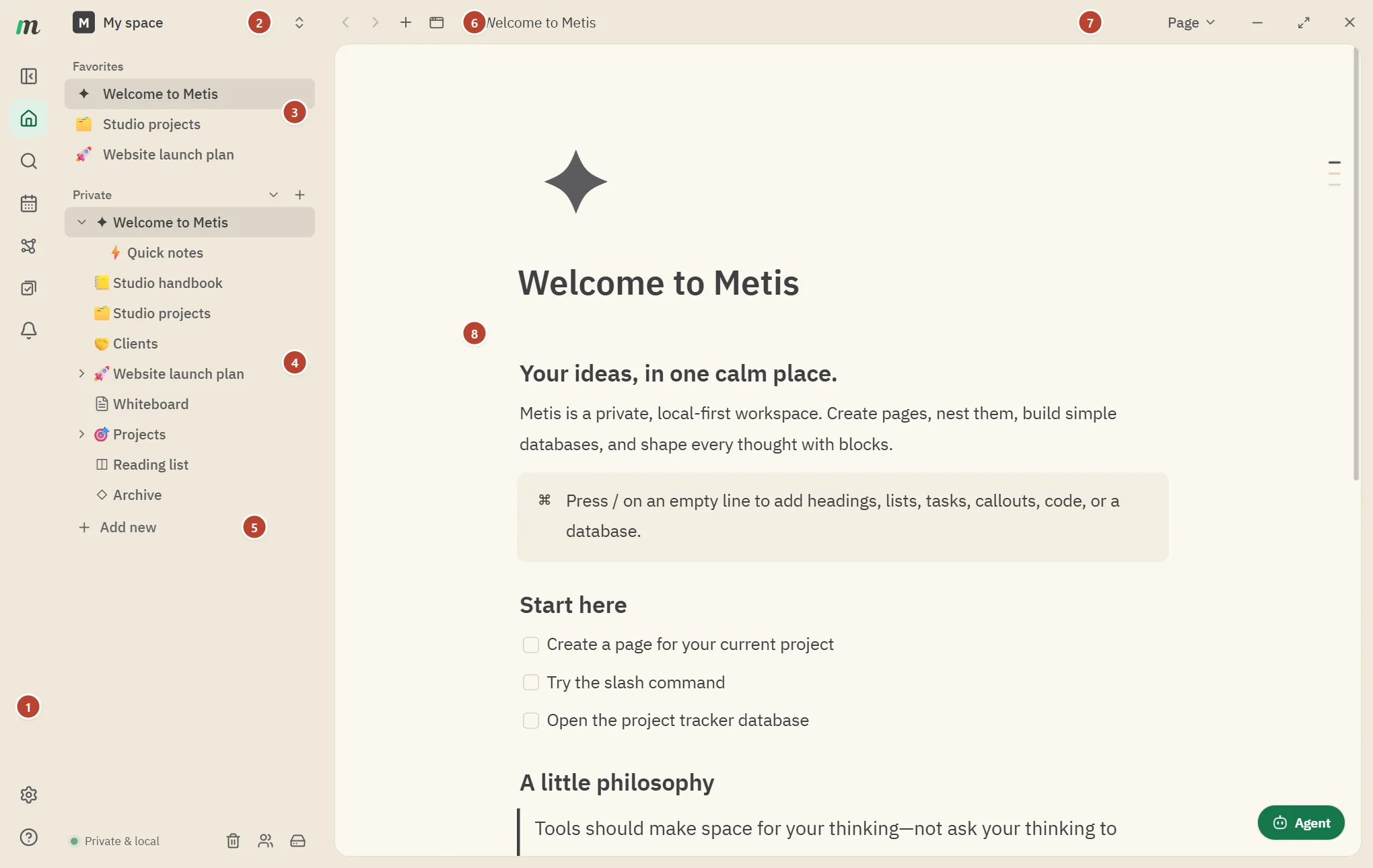
- 1 The rail holds the things you reach for all the time: close the page list, Home, Search, Today, Graph, Study and Inbox. Report a bug, Settings and Help sit at the bottom.
- 2 The workspace menu switches between your Private and Connected workspaces.
- 3 Favorites are the pages you starred.
- 4 The page list shows every page. In a Private workspace it is called Private; in a Connected workspace, Shared.
- 5 Add new creates a page or starts from a template.
- 6 The title bar has Back, Forward, New tab, New window and the path to the open page.
- 7 The Page menu holds everything about the open page: style, locks, history and exports.
- 8 The page is where you write. Hover over the small lines at its right edge for the table of contents.
Hide the page list
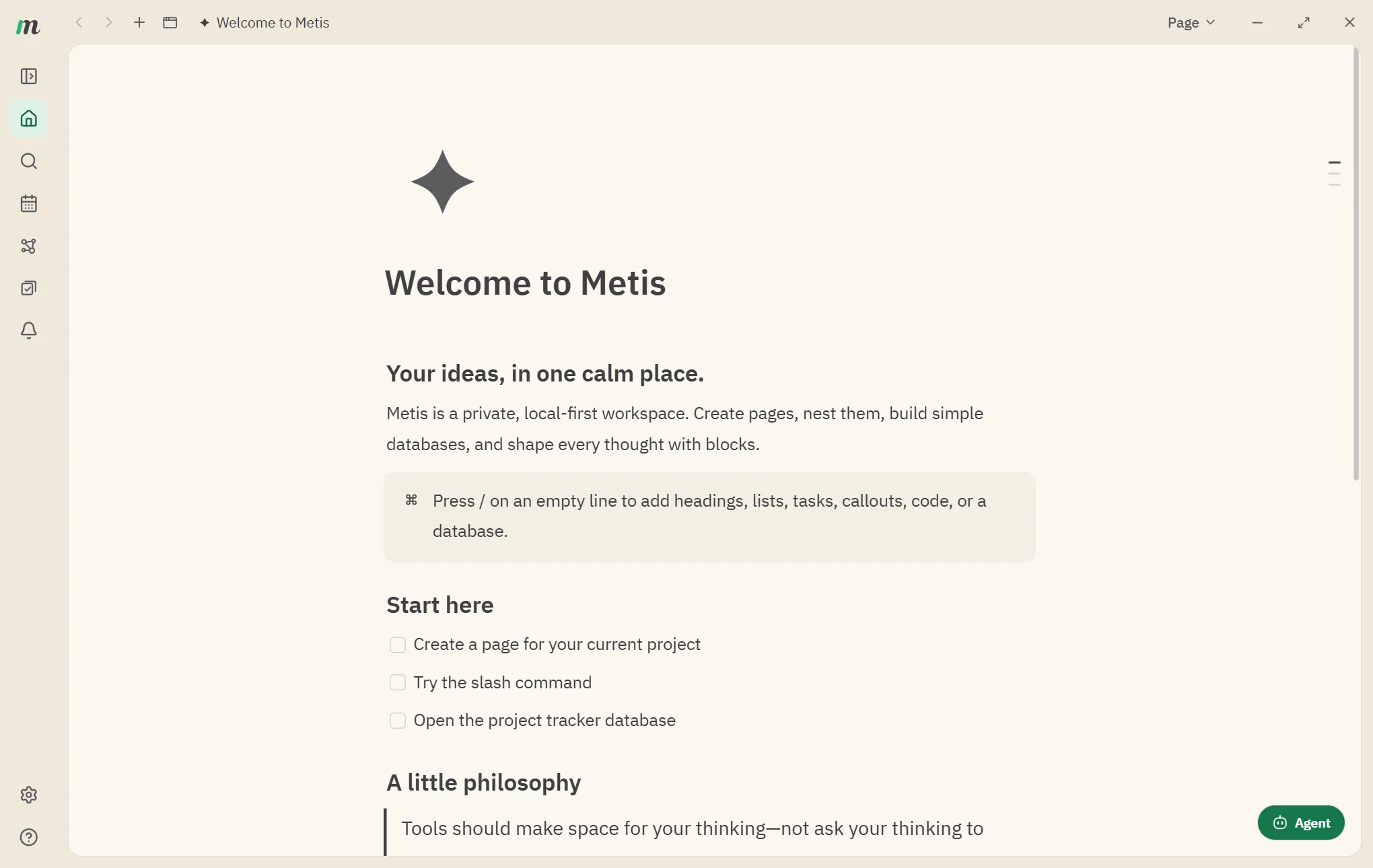
Press Ctrl \ or the first button on the rail. The page gets the extra room, and the rail stays. To make the page list wider or narrower, drag its edge; double-click the edge to reset it.
Closing the window
On Windows, closing the window keeps Metis running in the system tray, so reminders still reach you. Click the Metis icon in the tray to open it again. To close Metis completely, right-click the icon and choose Quit Metis.
The workspace menu
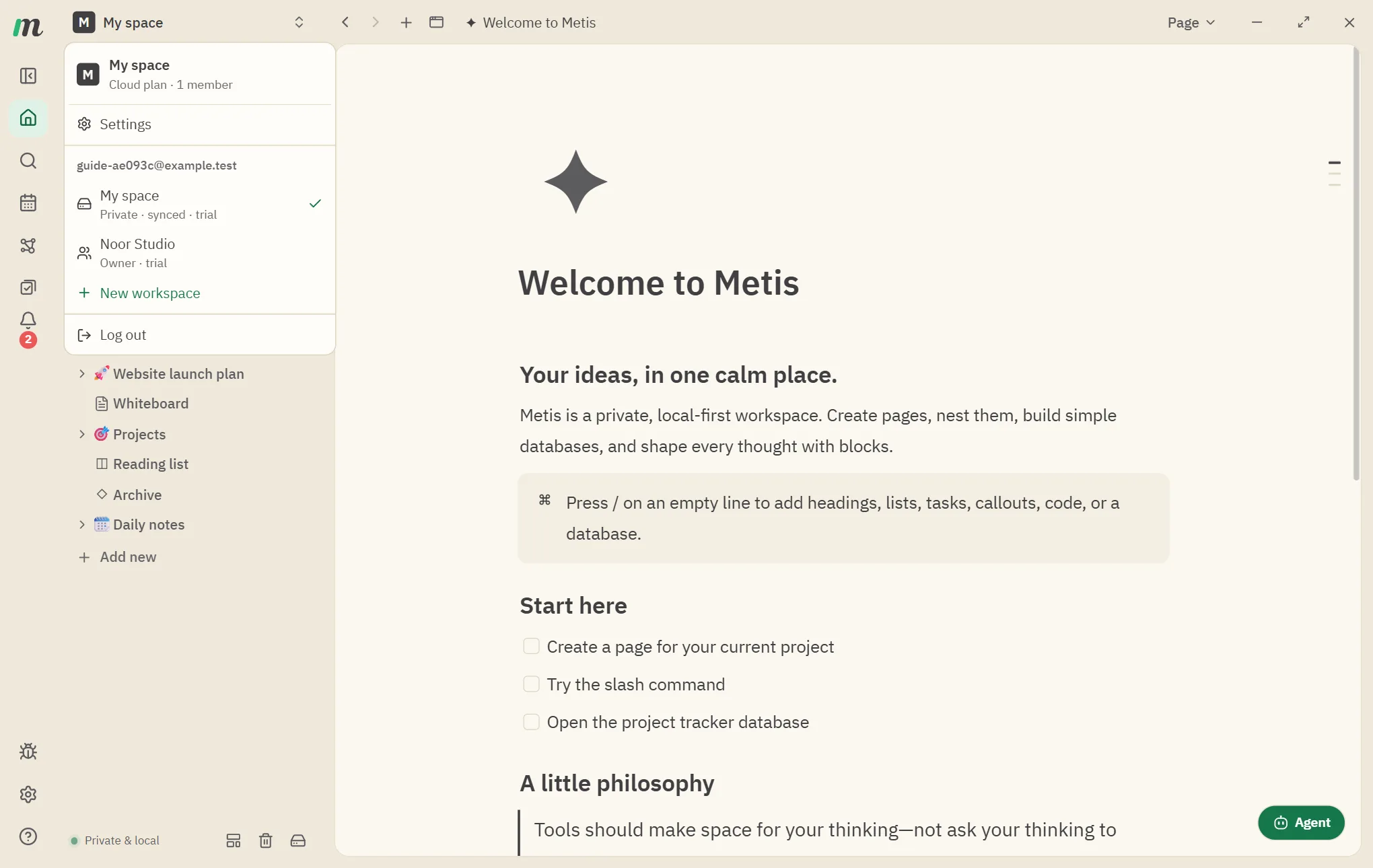
Click the workspace name at the top to see who you are signed in as, open Settings, switch workspace, create a new one, or log out.
The bottom of the page list
The small label tells you where this workspace is stored, such as Private & local, Connected or Shared with your team. Beside it are the Trash, People (or New Connected workspace), and, for a personal workspace on the desktop, a button that shows your files in File Explorer.